A stock watchlist Chrome extension saves you from keeping a finance site open in a tab all day. The extensions differ mostly in where the list sits, and the right spot depends on how often you glance at prices.
We make InvestFellow, one of the options below, so every fact about the others comes from their own listing or site (sources at the bottom). Prices in any of these tools can be delayed, and nothing here is advice on what to buy or sell.
Four places a watchlist can live
| Where | When you see prices | Examples (per their pages) |
|---|---|---|
| Bar on the page | All the time, without clicking | InvestFellow |
| Side panel | While the panel is open, next to the page | Stocks – Realtime Watchlist & Charts, BadgeTicker |
| New tab | Each time you open a tab | TickerTab, StockNinja Dashboard |
| Toolbar popup | When you click the icon | Stocks Extension, PulseTrack Pro |
Option 1: a bar on every page (InvestFellow)
InvestFellow puts your watchlist in a thin bar at the top or bottom of the page. It can scroll or stay still, and you can show it on every site or only the ones you choose. The watchlist takes stocks, ETFs and indices. The bar and the watchlist are free, with no account, and prices refresh every 2 minutes. Premium refreshes every 4 seconds and adds crypto, price alerts, a second bar for market movers and AI insights. It costs $4.99 a month after a 7-day free trial, paid through PayPal.
It suits you if you want prices in view without clicking. The trade-offs: there's no import, so you add tickers one at a time, and the bar takes up space. A top bar pushes the page down by about 30 pixels, and a bottom bar sits over the foot of the page.

Set it up in about a minute
- Install InvestFellow from the Chrome Web Store (or the Edge Add-ons page). Pin the icon from the extensions menu if you want it in the toolbar.
- Click the InvestFellow icon to open the popup.
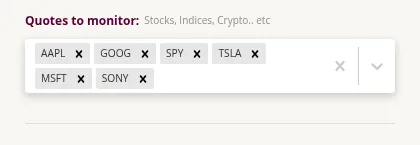
- Under "Quotes to monitor", type a company name or ticker in the "Select symbols" box and pick it from the list. Repeat for each one. The bar starts with six symbols (AAPL, GOOG, SPY, TSLA, MSFT and SONY), and you can remove any of them with the x.
- Choose "Toolbar position" Top or Bottom and "Toolbar type" Scrolling or Static. Under "Where is the toolbar shown?", pick "Shown on all websites", or "Only shown on selected websites" and type each site, such as google.com, then press Enter.
- Open any regular web page. Your watchlist is in the bar.
Want a notification when a price crosses a level? That's a Premium feature, and the steps are in our price alerts guide.
Option 2: Chrome's side panel
A side-panel extension keeps the list in a column beside the page, so it covers nothing, but you have to open the panel first.
- Stocks – Realtime Watchlist & Charts runs in the side panel with sparkline charts, news for each stock and drag-and-drop ordering, per its listing. The listing says it's free with no account, keeps your watchlist locally, uses Yahoo Finance data, and uses Google Analytics anonymously with an opt-out.
- BadgeTicker has a side panel and a popup, and can show a price or percent change on its toolbar icon. Its listing says you can set the refresh as fast as every 10 seconds, and doesn't state a price.
A fit if you want charts and news next to the list and don't mind opening the panel.
Option 3: your new tab page
A new-tab dashboard replaces Chrome's new tab with a market page, so you see your list whenever you open a tab.
- TickerTab is free with no account, per its site. It shows indices, a watchlist you can reorder and import, top movers, news, fundamentals and options chains.
- StockNinja Dashboard shows quotes, news, catalyst alerts and an earnings calendar, per its listing. The listing says it supports Nasdaq-listed stocks and ETFs, with OTC and international markets "coming soon".
A fit if you open lots of tabs and want more data per ticker. It replaces your usual new tab page, and you won't see prices while you read something.
Option 4: a toolbar popup
A popup extension stays out of the way until you click its icon.
- Stocks Extension offers a custom watchlist with stocks and indices, sorting and pinning, quote details, a market overview and a portfolio view with gains and losses, per its listing. The listing doesn't state a price.
- PulseTrack Pro refreshes every 30 to 60 seconds, per its listing. The free plan covers 2 tickers. Pro ($2.99 a month or $29.99 a year) raises that to 15 and adds a portfolio view, charts and price alerts.
A fit if you check prices a few times a day and want nothing on screen the rest of the time.
Which one should you pick?
- Prices in view all the time: a bar on the page, like InvestFellow.
- Charts and news beside what you're reading: a side panel.
- A full market page each time you open a tab: a new-tab dashboard.
- You only check now and then: a popup.
You can mix them. A bar for a handful of tickers and a new-tab dashboard for deeper looks works, though two extensions means two sets of permissions to review.
For a wider look at ticker bars and lookup tools, see Stock ticker Chrome extensions, compared.
FAQ
Is there a free stock watchlist extension for Chrome?
Yes. InvestFellow's bar and watchlist are free, and Stocks – Realtime Watchlist & Charts and TickerTab say they're free on their own pages. Where an extension has a paid plan, it tends to add faster refresh, alerts or more tickers.
Do I need an account?
Not for InvestFellow, on the free plan or on Premium, which is paid through PayPal. Stocks – Realtime Watchlist & Charts and TickerTab also say no account is needed.
Can I import my watchlist?
Not into InvestFellow. You add tickers one at a time. TickerTab's site says its watchlist supports import.
Are the prices current?
Not always. Quotes come from a data source, and delays depend on the exchange and the source. InvestFellow refreshes every 2 minutes on the free plan and every 4 seconds on Premium, and its prices can be delayed. A faster refresh doesn't make a delayed quote current, so check your broker before you act on a price.
Does a watchlist extension work on every page?
A bar like InvestFellow's runs on regular web pages (http and https) only. It won't show on Chrome's own pages, such as settings or the default new tab page, or on the Chrome Web Store, where Chrome doesn't let extensions change the page. If you can't see it, open an ordinary website. Side-panel and popup extensions don't depend on this, because they don't draw on the page.
Is this financial advice?
No. This page compares tools for keeping a list of stocks. It doesn't tell you what to buy or sell. Do your own research before you make an investment decision.